Tips & Tricks
Creating a design can be intimidating, so hopefully these tips will help you get where you need to be.
1. Bring Your Colour Count Down Early
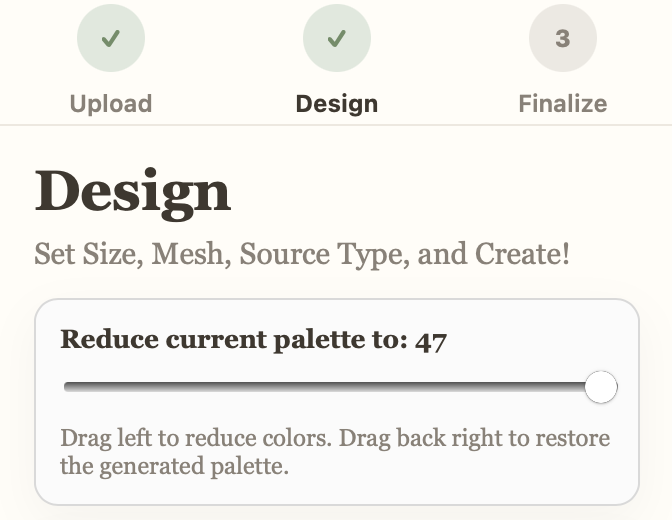
When you import a photo, the editor tries to recreate it in as much detail as it can — which usually means a lot of stitch colours, and a lot of them very close in shade. Use the Reduce current palette slider to bring that count down into roughly the 8–20 range first, then fine-tune from there with the Select and Fill tools below.
If you’re starting from a photo rather than clip art, MNS Pro (our chatbot) or Canva can help you generate something more stitch-friendly before you upload it.
2. Chasing Detail? There’s More Than One Lever
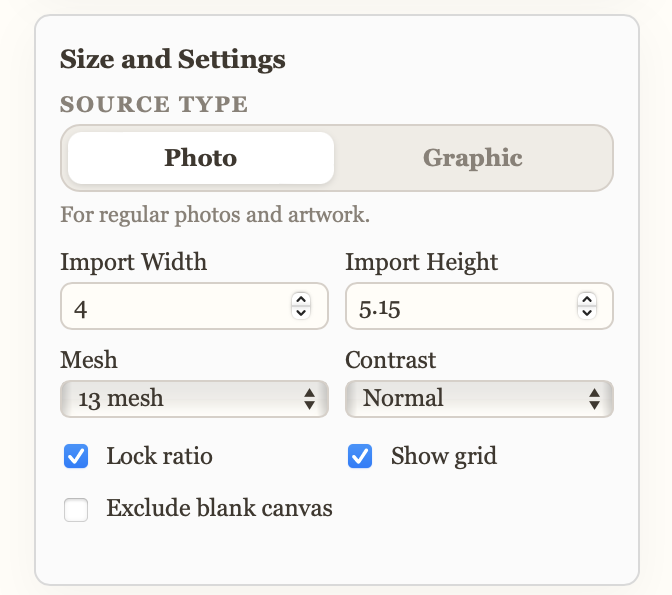
If your import isn’t as detailed as you’d like, the fix is usually either importing the photo larger, or switching to 18 mesh. Anything that adds resolution helps. It’s also worth playing with Contrast and the Graphic source setting to see if you can get the image to pop.
3. Select and Fill: Two Ways to Cut Colours
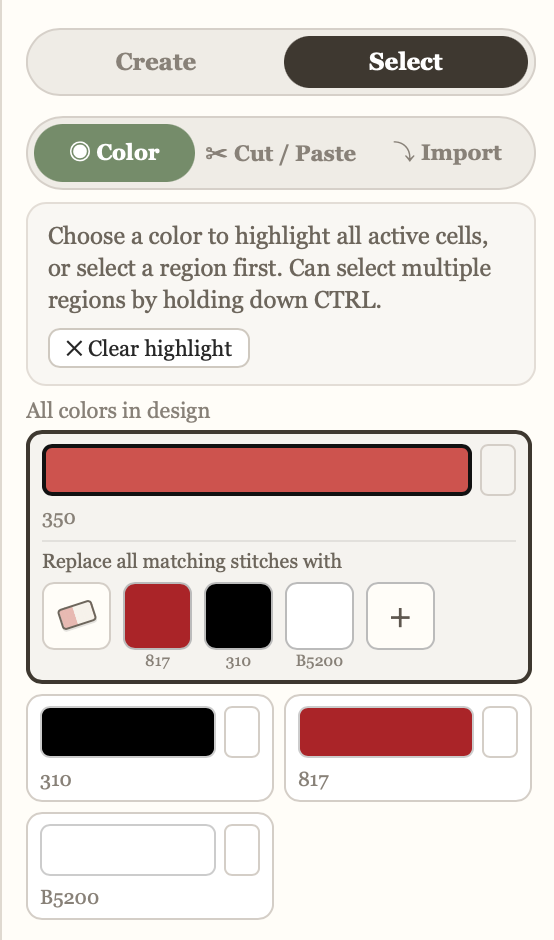
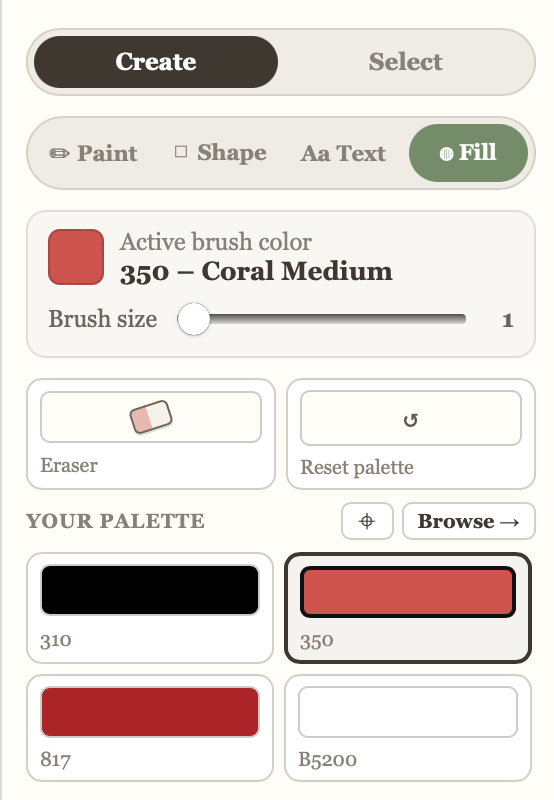
Both tools are great for reducing colours, and they work differently. Select → Color lets you select every cell of one colour at once and replace them all in a single move. Create → Fill lets you click on a specific section and fill it with whatever colour is active.
4. Use Trace to Check Your Progress
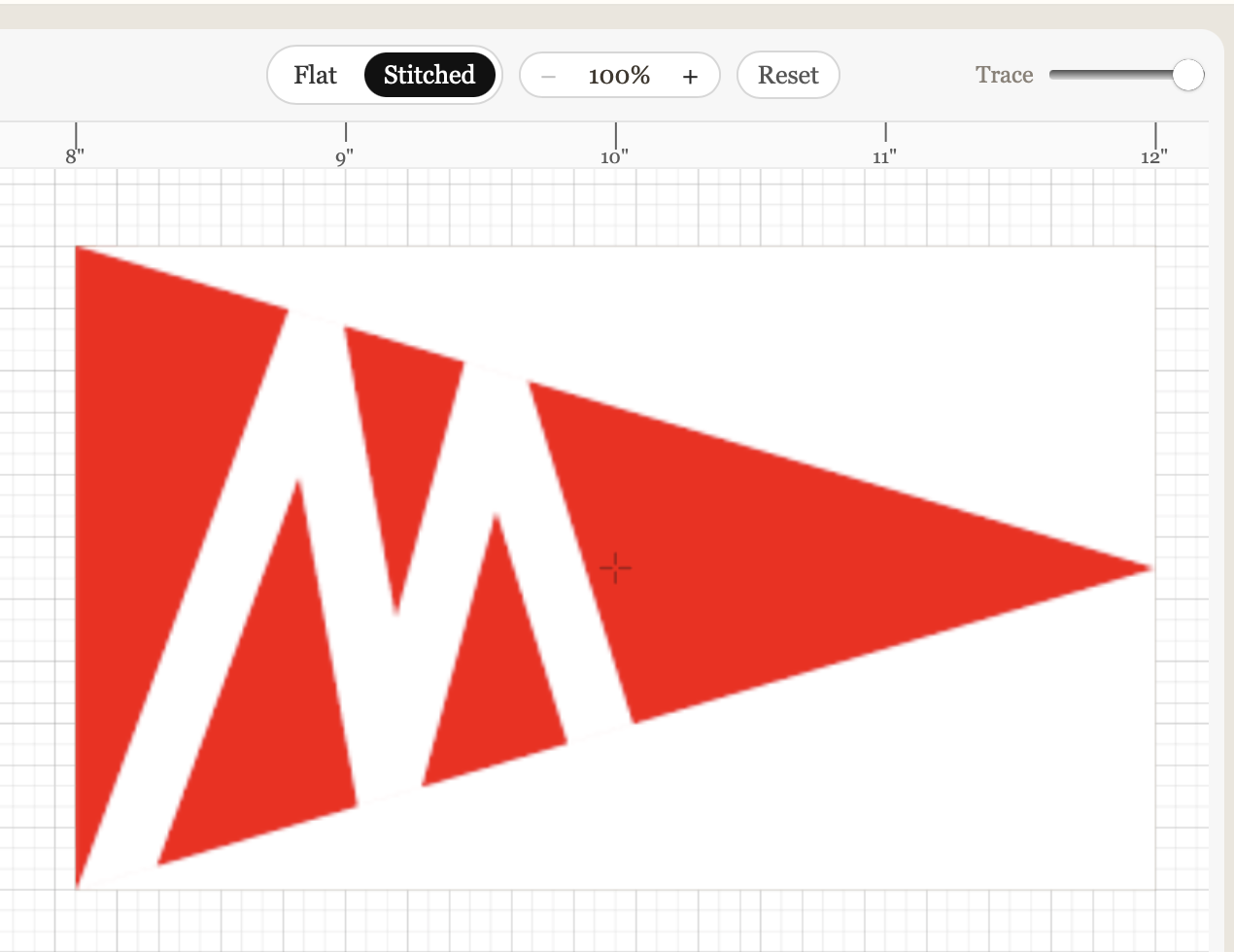
The Trace slider, top right of the canvas, is probably the tool we use the most when designing from an import. Slide it back and forth to fade between your original source image and your work in progress, so you can see exactly where your stitches are drifting from the source.
5. Cut, Copy, and Paste for Symmetry
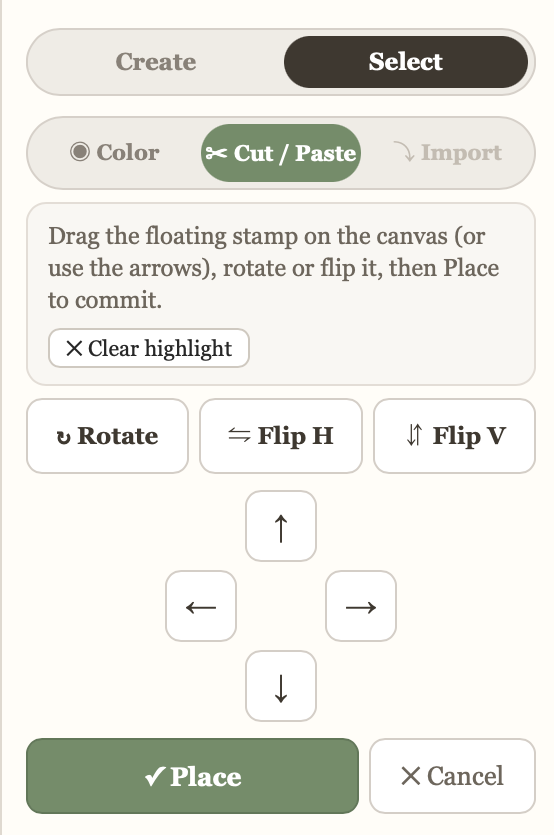
The Cut / Paste tool is a big help for symmetrical designs. Select a region, then flip it horizontally or vertically, rotate it, or just nudge it into place with the arrows before committing with Place.
6. Imitation Is the Sincerest Form of Flattery
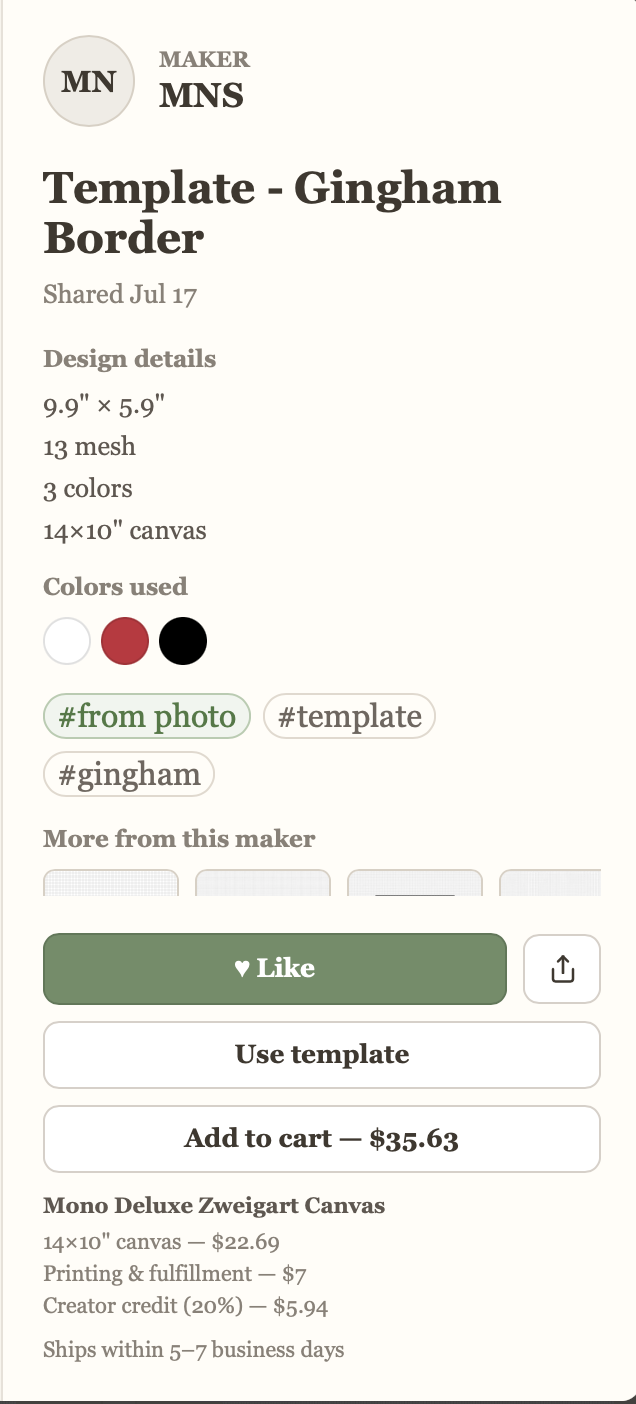
Don’t be afraid to use someone else’s shared design as a template to get where you want to go — hit Use template on any gallery design to start from it. The whole point of the gallery is to design and share with each other.
Hope this helps — don’t hesitate to reach out if you have questions.